Excelsior has upgraded our UKG file management system. Now instead of Documents (soon to disappear from your view) you will see Document Manager available in your menu. This provides more capability to the HR team as well as tying in directly to online form and request submission capability through People Assist which we are working on and you will hear more about soon.
Where is it?
Employees can access the Document Manager Portal from your UKG main menu. Managers will also see Document Manager under their My team menu.
Old Look
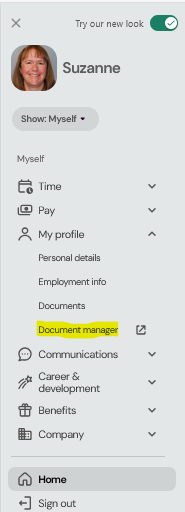
New Look
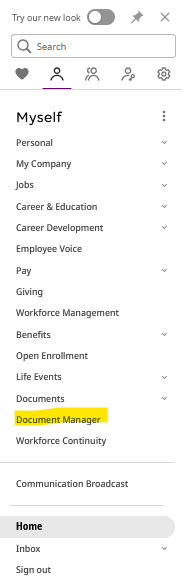
My Folder
We are starting with a smaller number of visible documents as the file migration process continues to reduce the number of email notifications you may receive. If you have received an email, it is related to this migration process and is not a phishing scam. Even so, there is no need ever to click on any links that feel like phishing and you can see what is in your file directly through UKG. We can open this up more for you once we are more established with the solution and the migration is complete.
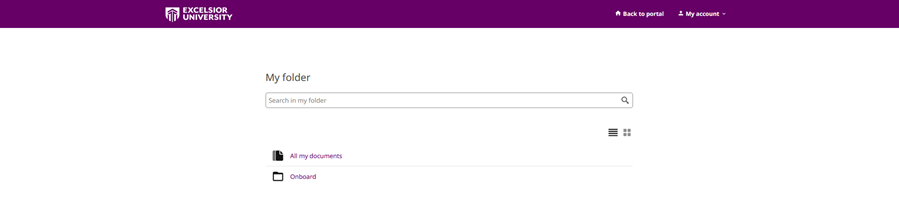
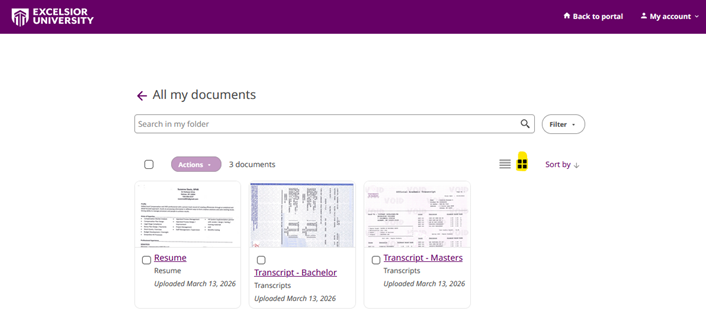
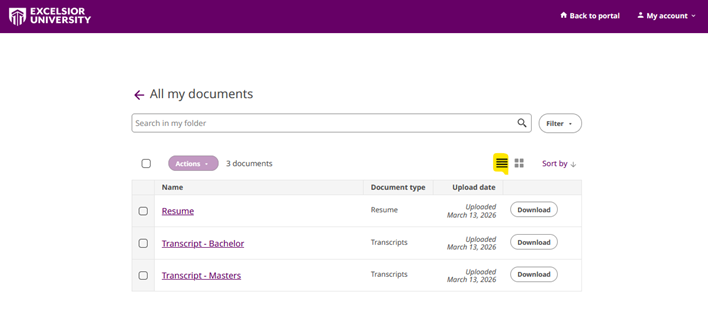
When you select the My folder section you can view and access your documents, which are organized alphabetically in folders. You have two view options: list and thumbnail. The thumbnail view provides you a preview of the document. Switch between views as needed. From the All my documents folder you can view all your documents and sort them by name or by upload date.
Document Management Options
From the My folder page you can search, preview, and download your documents.
The following table lists and describes the document management options available in the My folder page.
| Option | Description |
| Search | Enter key words in the Search bar. Each document listed in the search result displays basic information such as document name and type, and upload date. |
| Sort | Sort documents by name or by upload date from any of the document folders or the search result list. |
| Preview | Select a document from the folder list or search result list. Only documents in PDF and image file extensions can be previewed. |
| Download | Download one or more documents by selecting the checkbox next to each document within a document folder or from the search result list. Download documents as PDF or ZIP file by selecting the corresponding option from the Actions drop-down list. Note Only PDF files can be merged into one document. To download files in different file extensions, select the ZIP file option. When you select Download as a merged PDF, the merged document downloads to your computer or mobile device. When you select Download as a ZIP, a confirmation message appears informing you that you’ll receive an email with a download link. |
You will be hearing from us soon on more exciting new functionality through People Assist. In the meantime please let me know if you have any questions.
Source: Suzanne Davis